Licensing Guide

Where to Collect Your License
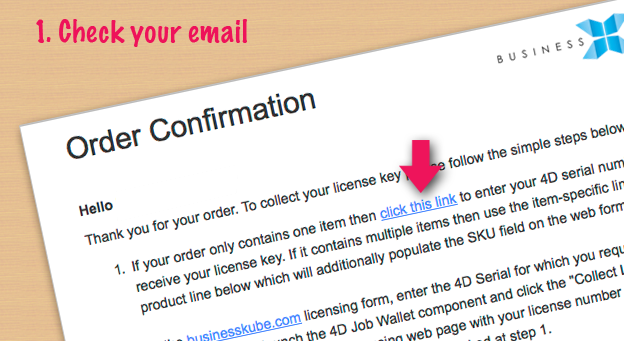
| 1: Go to the licensing page (use the order acknowledgement link shown in the illustration opposite to auto-populate the email and order number form fields) |
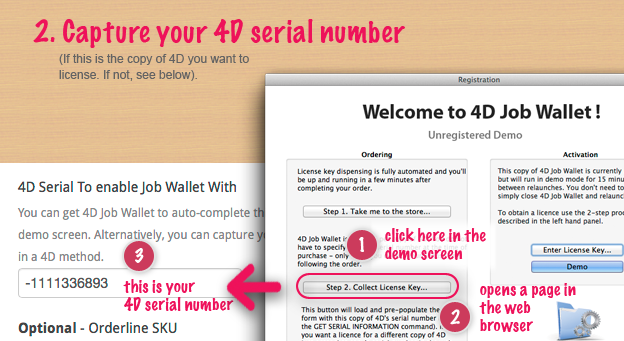
| 2: Complete the email, order number and 4D serial (see step 2 illustration) |
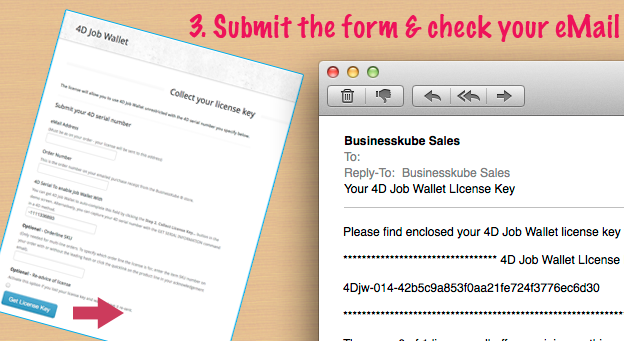
| 3: You will receive your 4D Job Wallet serial number ideally immediately. If it hasn't arrived within 20 minutes please let us know |
| 4: Activate your license in the demo screen by clicking on the "Enter License Key..." button and pasting the 4D Job Wallet serial key into the displayed field. |
Capturing your 4D Serial Number
The 4D serial number is unique to your 4D license and looks something like this: -1517933283. (Note, this is not to be confused with your 4D product number which is what 4D supply you when you get your licenses and takes the form of groups of numbers separated by dashes).
4D Job Wallet can detect your 4d serial number as follows:
| A: Launch 4D Job Wallet and at the demo screen, click the button labelled Step 2. Collect License Key..." This will invoke a web page in your browser which is pre-populated with your 4D serial number. |
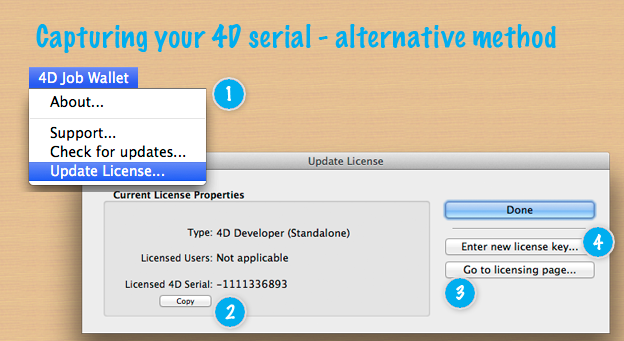
| B: Choose the Update License... command from the 4D Job Wallet menu and copy it from the subsequently displayed form. (See alternative method illustration below). |
Activating Your 4D Job Wallet License Key
Once you've received your license key, copy it to the clipboard and launch 4D Job Wallet again.
Either in the demo screen or in the Update License... (see below) click the button labelled Enter License Key..." and paste your key into the displayed field.
The License Management Window
4D Job Wallet now has a dedicated function for managing licenses as well as for entering expansion licenses. This lets you check the user capacity (team Developer version) and license type or enter a new license if you are still using the demo.